
Android Phone
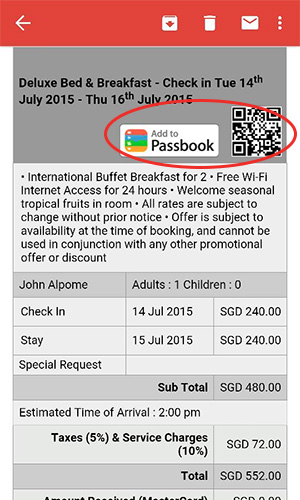
Step 1
Select "Add to Passbook" from your smartphone or scan the QR Code from your desktop to proceed adding the pass to the wallet.
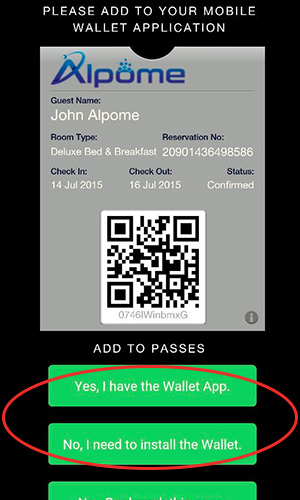
Step 2
If you already have the wallet, select on "Yes, I have the Wallet App" and proceed to Step 5. Otherwise, please select "No, I need to install the Wallet" and continue to Step 3 onwards.
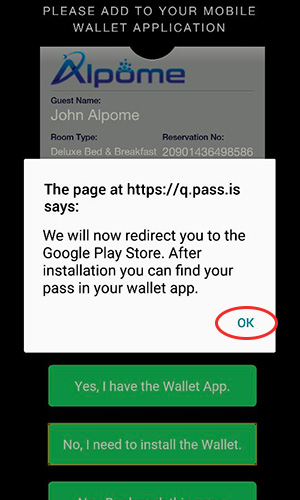
Step 3
You will be redirected to the wallet app in "Google Play Store".Your pass will be automatically added to your wallet after installation. To continue, please select "OK".
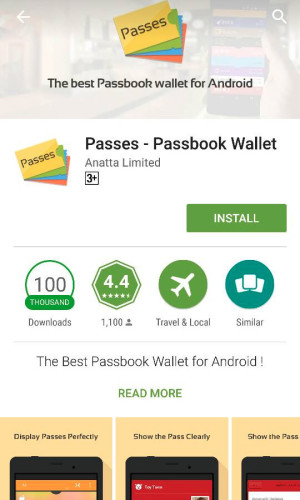
Step 4
Install the wallet app.
Start the wallet app after installing.
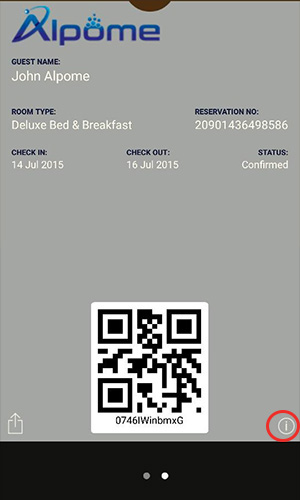
Step 5
Your pass is now added to your pass wallet.
For more info, select the "i icon".
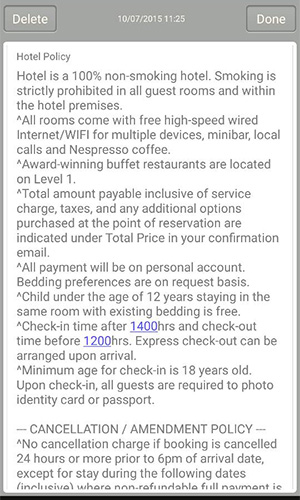
Step 6
Additional information is shown behind the pass.
Enjoy the experience of having a digital pass.
iPhone
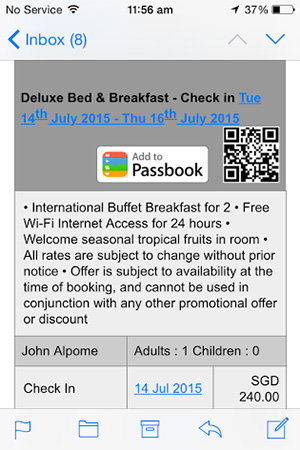
Step 1
Select "Add to Passbook" from your smartphone or scan the QR Code from your desktop to proceed adding the pass to the Passbook.
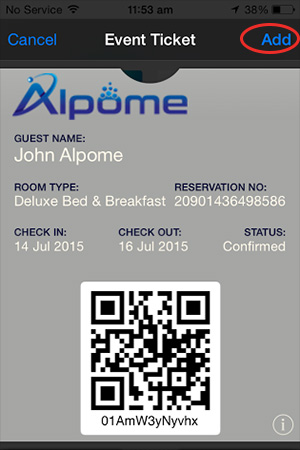
Step 2
Select "Add" to add the pass to Passbook.
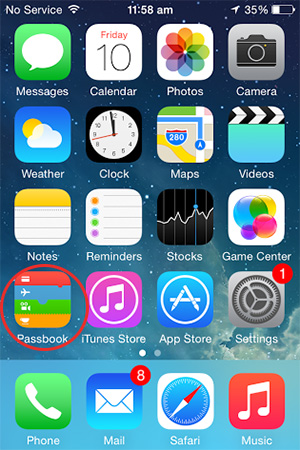
Step 3
After adding, locate your Passbook and start the app
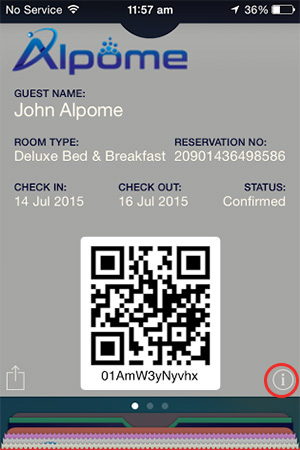
Step 4
Locate the pass in Passbook and select it.
For more info, select the "i icon".
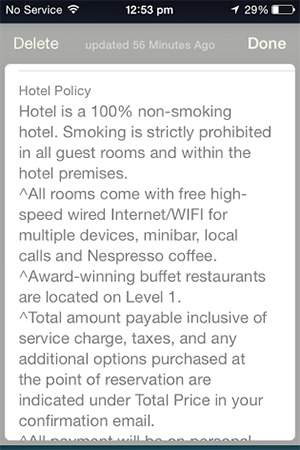
Step 5
Additional information is shown behind the pass.
Enjoy the experience of having a digital pass.